Manage Purchased Tickets
This page explains how to manage tickets in the My Tickets area. For each ticket, you can decide whether you want to:
-
personalize it for yourself
-
personalize it for someone else
-
transfer it to someone else
This guide helps you choose the right action and understand what happens afterwards.
Quick Decision Guide
Use this simple rule:
-
You are attending yourself: Personalize the ticket for yourself
-
Another person should receive the ticket with their name on it: Personalize the ticket for someone else
-
Another person should take over the ticket in their own account and manage it themselves: Transfer the ticket
Where To Find The Functions
Open the Tickets section in the conference navigation and select My Tickets.
The page is split into several areas:
-
Open ticket invitations: Invitations that were sent to your email address and that you can still accept. This area is only visible if open invitations exist for your email address.
-
Purchased tickets: Tickets that you bought yourself. This area is only visible if tickets for this conference were bought with your account.
-
Your tickets: Tickets that were personalized for your account or transferred to your account. Buying a ticket alone is not enough for it to appear here.
You can perform the available actions for each ticket there.
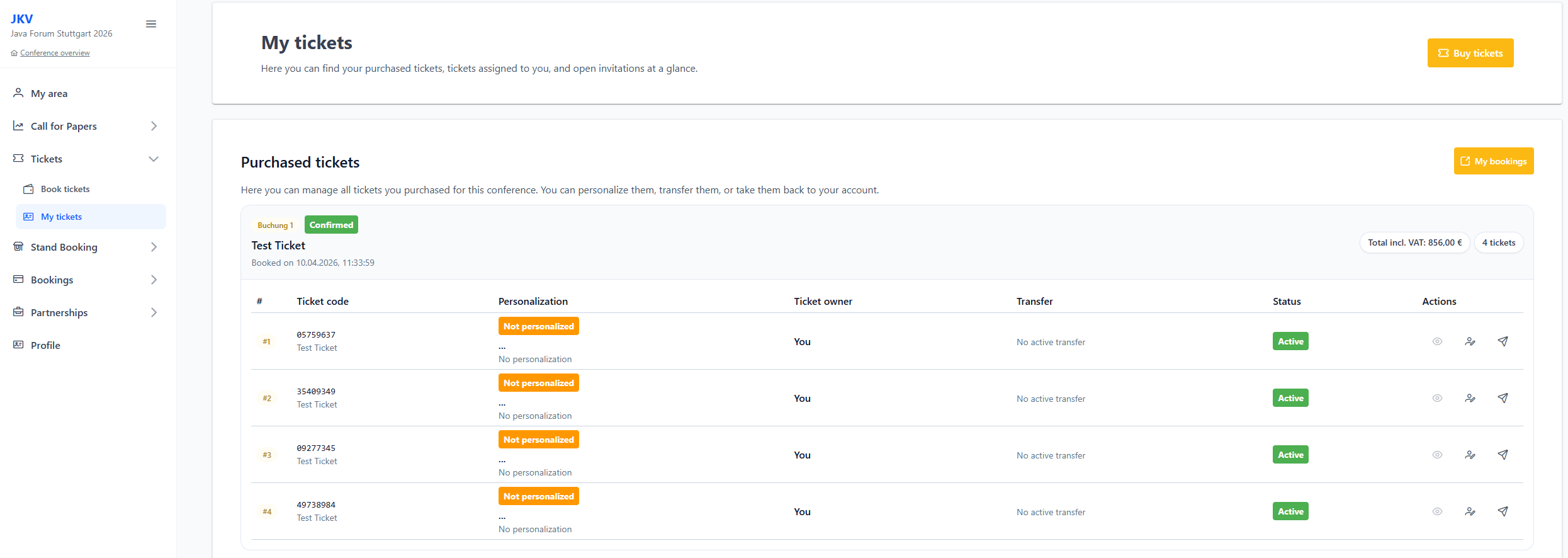
Each ticket shows information such as:
-
ticket code
-
personalization status
-
current owner
-
status of an open transfer
-
ticket status, for example Active, Used, or Cancelled
Actions always apply only to the ticket you select. If you bought multiple tickets, you can manage each ticket separately.
Actions In The Ticket Table
You can perform actions for a ticket by using the icons on the far right of the table. Depending on the ticket status, different actions may be shown:
-
View ticket: Opens the currently valid ticket PDF.
-
Personalize: Opens the dialog to issue the ticket to a person.
-
Transfer: Creates an invitation so another person can take over the ticket.
-
Copy link: Copies the takeover link for an already open invitation.
-
Revoke invitation: Revokes an open invitation.
-
Take back ticket: Moves a transferred ticket back to the buyer’s account.
Not every action is always visible or selectable. The available actions depend on whether the ticket is active, whether it has already been used, and whether there is an open invitation.
|
If an action is not possible, the corresponding icon cannot be selected. |
Which Function Is The Right One?
| Situation | Matching action | Result |
|---|---|---|
You are attending yourself |
Personalize the ticket for yourself |
The ticket stays in your account and is issued with your details. |
Another person should attend with the ticket |
Personalize the ticket for someone else |
The ticket is personalized for the other person and sent to them by email. The email contains a link that lets the invited person take over the ticket and manage it in their own account. |
The other person should consciously take over and manage the ticket themselves |
Transfer the ticket |
An invitation is sent. An existing personalization is removed. The ticket only moves to the other person’s account after they accept the invitation. |
Difference Between Personalizing For Someone Else And Transferring
Case 2 and case 3 may look similar at first, but they serve different purposes.
| Question | Case 2: Personalize for someone else | Case 3: Transfer |
|---|---|---|
Is the ticket issued directly to the other person? |
Yes |
No, first only an invitation is sent. The invited person personalizes the ticket themselves afterwards. |
Does the other person immediately receive a ticket by email? |
Yes |
No, first they receive an invitation to take over the ticket |
Can the other person manage the ticket later in their own account? |
Yes, using the takeover link in the ticket email |
Yes, after accepting the invitation |
Does the ticket initially remain under your management? |
Yes, until the other person accepts the link |
Yes, until the other person accepts the invitation |
Is an existing personalization removed? |
No, it is replaced by the new personalization |
Yes, before the transfer is started |
Case 1: Personalize The Ticket For Yourself
Choose this option if you are attending the conference yourself and want to keep the ticket in your account.
Whether the personalization is recognized as a personalization for yourself depends on the email address you enter. If you enter the same email address that your account uses, the ticket is personalized for you.
|
If you book exactly one ticket in a ticket booking, that ticket is usually already personalized automatically with your account data. The system uses your account first name, last name, and email address for this. If a company was provided during booking, that company is used for the personalization. If no company was provided during booking but a company is stored in your profile, your profile company is used instead. If neither source contains a company, the ticket is personalized without a company because a company is not strictly required for personalization. If this automatic personalization is not correct for your case, you can change the personalization manually at any time later. |
Steps
-
Open the desired ticket in My Tickets.
-
Select the Personalize action.
-
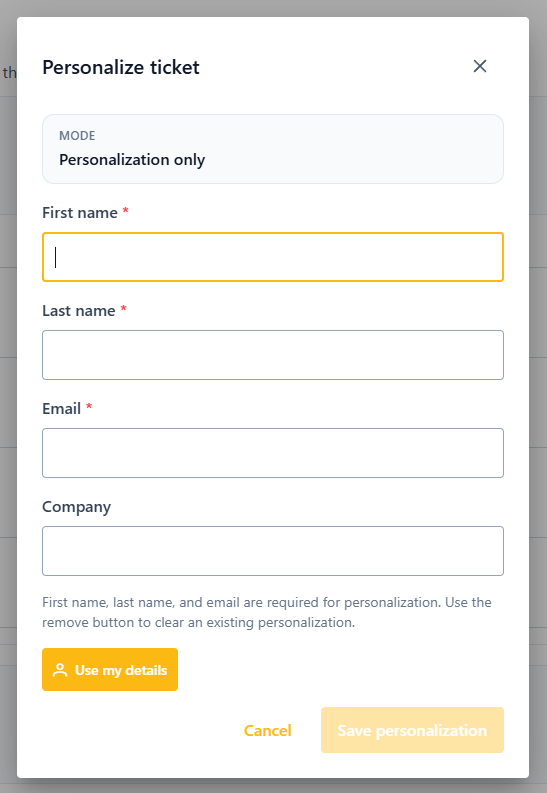
Enter your details:
-
first name
-
last name
-
email address
-
company, optional
-
-
Save the personalization.
|
Use the Use my account data button to fill the fields from your profile automatically. The following values are copied:
|
What Happens Next
After saving, the ticket is updated with your details. The previous ticket issue is invalidated and a new ticket issue is created. The updated ticket is then sent to the entered email address.
Case 2: Personalize The Ticket For Someone Else
Choose this option if the ticket is intended for another person and should be issued directly to that person.
This is the right option if the other person should receive the personalized ticket by email immediately.
Steps
-
Open the desired ticket in My Tickets.
-
Select the Personalize action.
-
Enter the other person’s details:
-
first name
-
last name
-
email address
-
company, optional
-
-
Save the personalization.
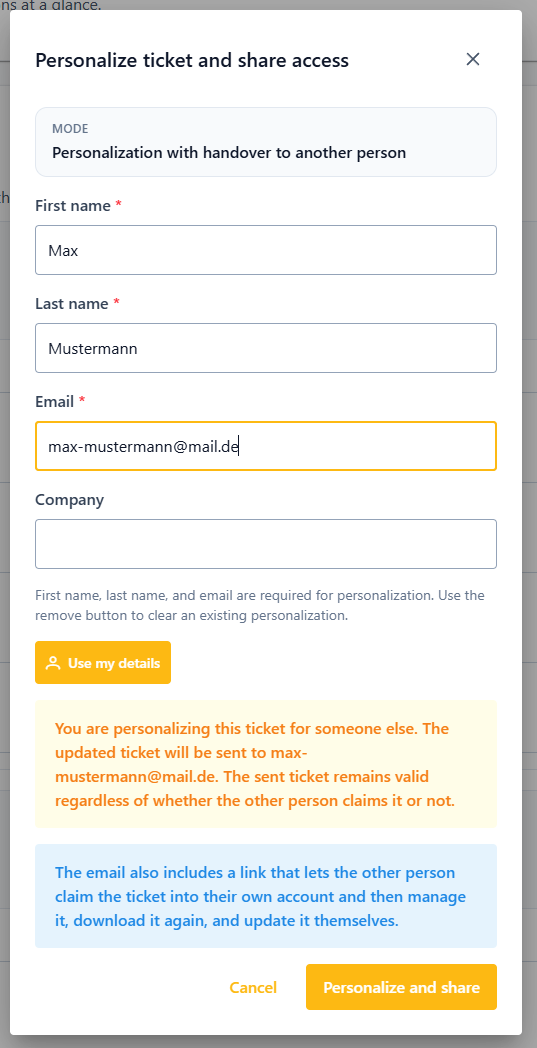
If you personalize a ticket you bought for another email address, the dialog is shown as Personalize and release ticket. This means that the ticket is personalized and the other person can additionally take it over into their own account.
What Happens Next
After saving, the ticket is personalized for the other person. The previous ticket issue is invalidated and a new active ticket issue is created.
The updated ticket is then sent to the other person’s entered email address. This email also contains a link that lets the other person take over the ticket into their own account.
Important To Understand
In this case, the ticket is personalized for the other person immediately. The other person can use the ticket as soon as they receive the email with the ticket.
The account change does not happen automatically.
Only when the other person accepts the link from the email is the ticket moved to their own account.
Until then:
-
the ticket is already issued to the other person
-
the other person has received the ticket by email
-
the takeover into their own account is prepared, but not completed yet
|
If you edit a ticket that was assigned to you but not bought by you, personalization for another email address may happen without a takeover link. In that case, the ticket remains in your account. Use the Transfer action for an actual handover. |
Case 3: Transfer The Ticket
Choose this option if the other person should deliberately take over the ticket and manage it in their own account.
This action is not mainly about personalization. It is about handing over responsibility for the ticket.
Steps
-
Open the desired ticket in My Tickets.
-
Select the Transfer action.
-
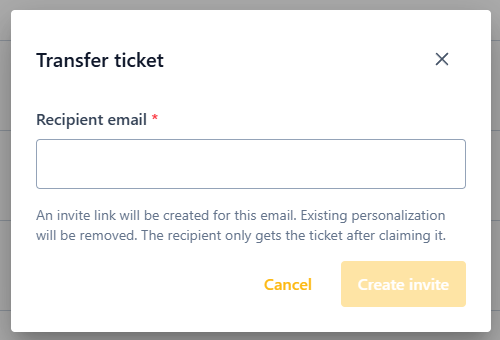
Enter the recipient’s email address.
-
Start the transfer.
What Happens Next
After starting the transfer, an open invitation is created. The previous personalization is removed and the previous ticket issue is invalidated.
An invitation email with a takeover link is then sent to the entered address. The link is also available to you, so you can forward or copy it if needed.
What Does Not Happen Yet
Immediately after sending the invitation, the ticket is not yet finally in the other person’s account.
The takeover only happens when the invited person opens the link and accepts the invitation.
As long as the invitation is open, the ticket cannot be personalized again. You can revoke the invitation.
What Happens When The Invitation Is Accepted
When the invited person accepts the link:
-
the system checks whether the invited email address matches the signed-in account
-
the ticket is assigned to that account
-
the invitation is marked as accepted
-
the other person can then manage the ticket themselves
If the ticket has a personalization at that time, the ticket issue is updated for the accepted ticket.
What Happens To Old Ticket Files
When a personalization is changed, the previously active ticket issue is invalidated and replaced by a new ticket.
When a personalization is removed or a transfer is started, the previously active ticket issue is invalidated as well. At that point, there may not be a new ticket PDF yet because the ticket first needs to be personalized again or taken over.
Therefore:
-
Always use the newest ticket email after changes.
-
Do not continue using an old ticket PDF.
-
Always rely on the current ticket view in the system.
Frequently Asked Questions
Why Is My Single Purchased Ticket Already Personalized?
If you book exactly one ticket in a ticket booking, that ticket is personalized automatically with your account data.
The system uses your account first name, last name, and email address for this.
If a company was provided during booking, that company is used for the personalization. If no company was provided during booking but a company is stored in your profile, your profile company is used instead. If neither source contains a company, the ticket is personalized without a company because a company is not strictly required for personalization.
If this automatic personalization is not correct for your case, you can change it manually at any time later.
Does A Ticket Automatically Belong To Another Person After Personalizing It For Them?
No. The ticket is personalized for that person immediately and sent to them. The takeover into their own account only happens when the person accepts the link.
When Should I Use Transfer Instead Of Personalize?
Use Transfer whenever the other person should consciously take over the ticket and manage it permanently in their own account.
If the other person only needs to receive a personalized ticket by email, Personalize is usually enough.
Why Do I Not See A Completed Owner Change For An Open Transfer?
Because the invitation must be accepted first. Before that, the takeover is only prepared.
What Happens If I Revoke An Open Transfer?
The open invitation is revoked. The ticket remains in your management.
If a personalization was removed before, it is not restored automatically. Personalize the ticket again if needed.
Why Can I Not Personalize A Ticket?
Personalization is only possible if the ticket is active, has not been used yet, and has no open invitation. Revoke an open invitation first if you want to edit the ticket again.
What Does Take Back Ticket Mean?
If you bought a ticket and it already belongs to another person, you can take it back as long as the ticket is still active and unused. Open invitations and existing personalizations are removed. The ticket is then back in your account and can be personalized again if needed.