Helper Workspace
This guide will show you how to use the Helper Workspace area. Here, you will learn how to:
-
enter an attendance count for a talk
-
upload photographs of a talk
|
The Helper Workspace area is only accessible if you are part of the Helper or the Admin Group. |
Where To Find The Functions
The Helper Workspace can be found in the conference navigation. The page offers two views: My assigned talks and All talks.
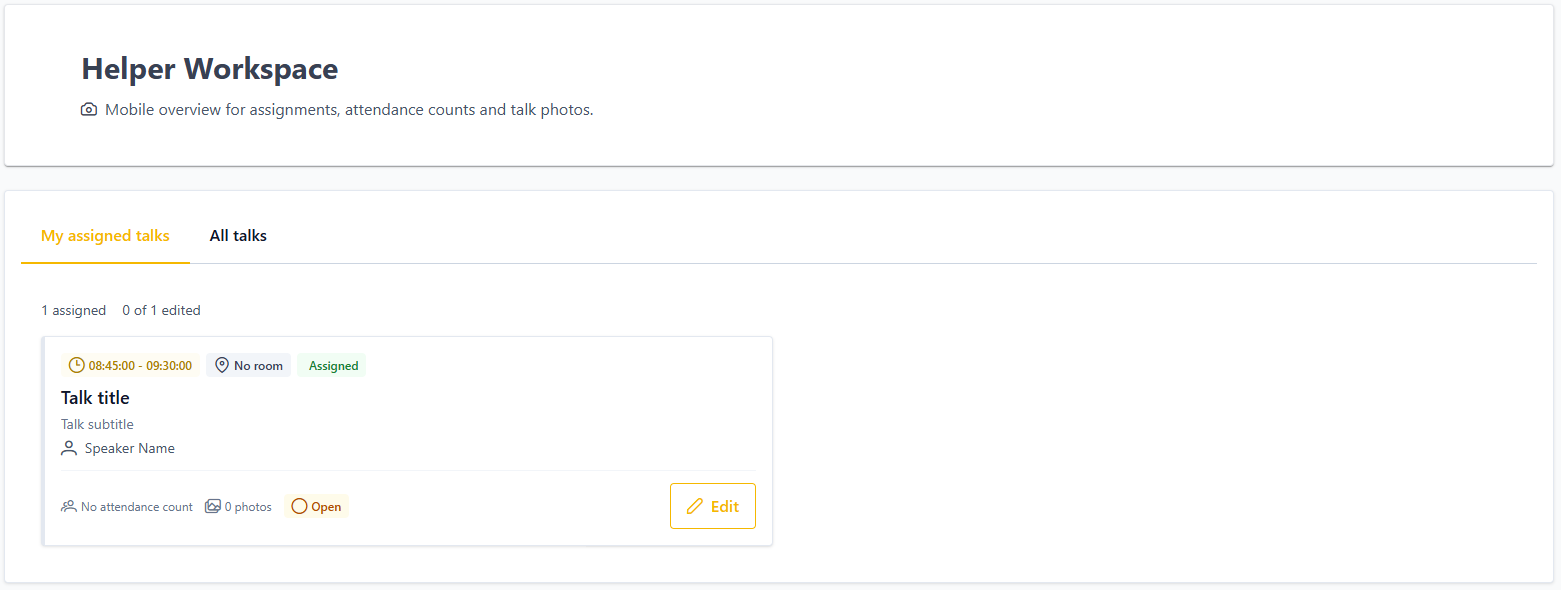
The area’s functions can be accessed by clicking on Edit on any talk. Any Helper can operate the functions for any talk, not just the talks they were assigned to.
Entering an attendance count
Find your talk in either view and click Edit to access the functions. Enter the number of people you counted and click Save.
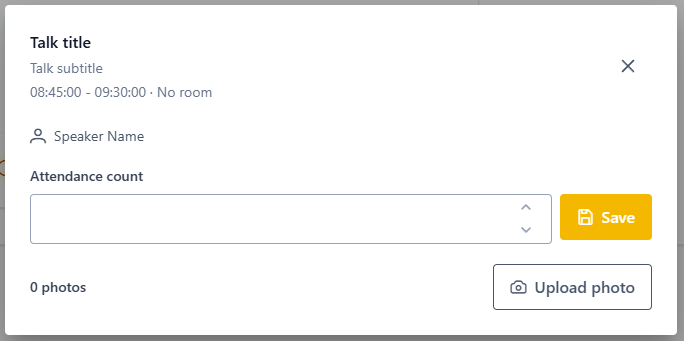
Uploading photographs
Apple Device
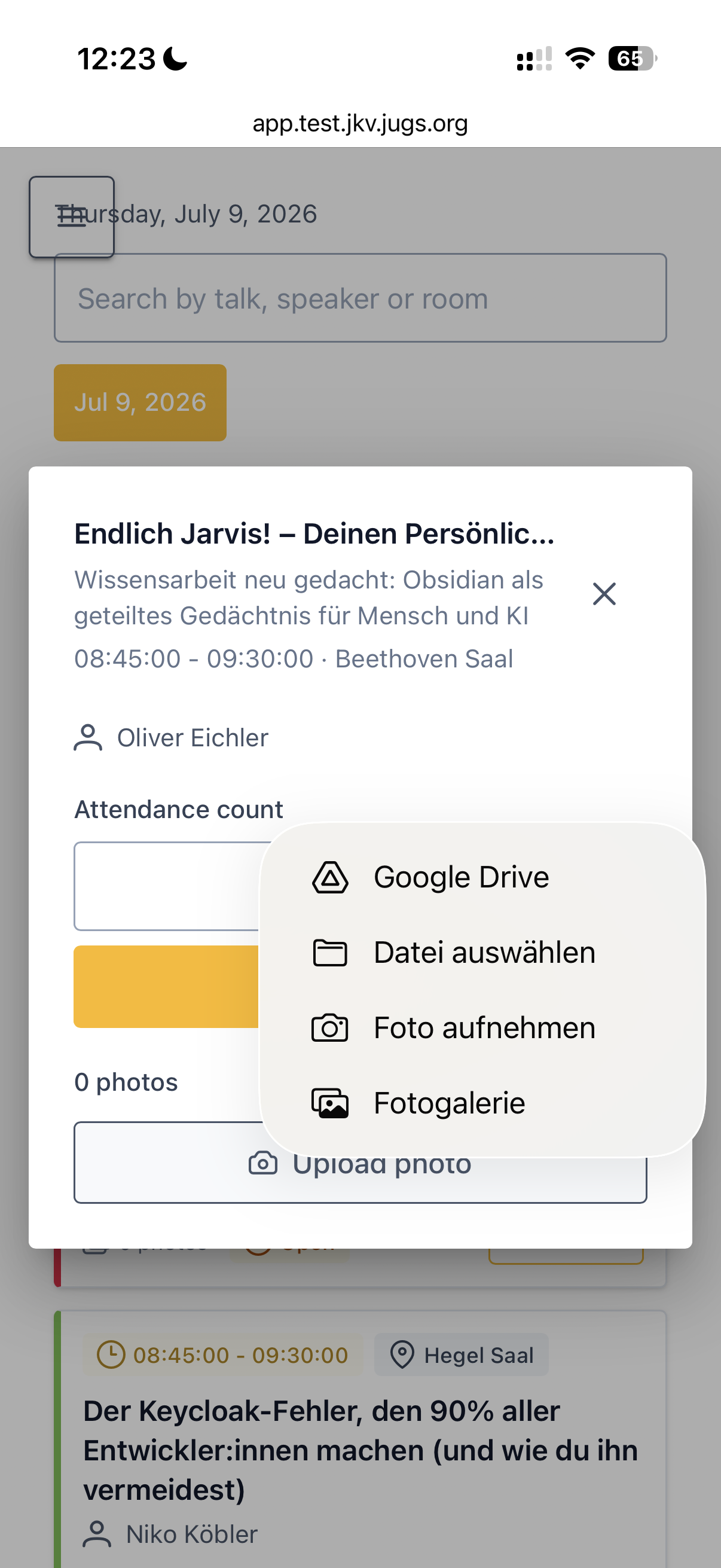
On the iPhone, a selection appears that allows you to choose between different photo sources. To take a photo directly with the camera, select “Take Photo”. If you want to upload a photo that is already saved on the iPhone instead, you can select it directly from the gallery using the “Photo Gallery” option.
Android Device
On an android device, a gallery-view opens up, allowing you to select recently added photos. The first tile in this view is a link to your camera, allowing you to take a photo directly. If you wish to upload an existing photo, select it from the view, or choose the second tile to browse your device.